This guide is designed to help you seamlessly integrate Print.com into any SaaS solution. With our streamlined approach, you can easily incorporate Print.com without needing to implement the entire Print.com API. Let's make your integration process smooth and hassle-free!
Discover the Print.com experience!
Print.com is renowned for its extensive product catalogue and limitless options, a favorite among Frequent Flyers—professionals who regularly order flyers. But our mission is serious business: we aim to embark on an exciting journey with our customers, collaboratively exploring the best path forward for Print.com. To help our customers reach new heights, our ecosystem must evolve every day. Connecting with the tools our customers use is crucial in this adventure.
Use cases from other ERP Support users
- A Europe focused ERP application for print professionals that integrated Print.com ERP Support so that customers can easily create quotes when they want to source to Print.com All done from within the application and out-filling the relevenat price and description fields. After winning a quote, the application allows purchasing the order directly without having to switch over to the Print.com webapp.
- A Dutch based ERP for companies that sell and install large format sign. The ERP Support integration allows users to fill in a new quote directly from the Print.com webapp. Moving a quote to a won project allows the user to follow the next steps and eventually order directly from the application.
- A bookkeeping application that Frequent Flyers use to quote and invoice their customers. They can use ERP Support to open the Print.com catalogue, add a selection of products to a quote. Every added product contains a product link that they can use to easily open the product configuration.
Feedback
We are always improving our API and services. Are you missing anything, having trouble connecting, or have a grand idea to improve things? We would love to hear it! Please contact us at [email protected] and we will be in touch as quickly as possible.
Implementation requirements
Account setup
For testing purposes, we recommend registering for a test account. To create one, please contact Solutions Guide, Joris Peters. This account will be useful for testing the integration of Print.com ERP Support in your application.
Our test environments are:
- Webapp: https://app.stg.print.com
- API: https://api.stg.print.com
Whitelist your application
After your test account is set up, your application will need to be whitelisted for use with Print.com. This process will be handled by your assigned Print.com Solutions Guide during the onboarding phase. You will receive the necessary information and parameters required for integrating ERP Support. The details will look something like this:
https://app.print.com/?YourApp=Value
Here, YourApp represents the name of your application, and Value is a unique value provided by us that applies exclusively to your app.
Set up ERP Support
The Print.com web app can currently be integrated as followed:
- from a SaaS solution (a browser app), or
- from a 4D App.
Browser app
The most popular method of integrating the Print.com app is by simply accessing it from the browser from your SaaS solution. In this case, you maybe have your own web app and want to integrate the Print.com products into it. What is possible is to open our app in a new tab, with the parameters that will be given to you when your app is whitelisted and when you have set up your account, like this https://app.print.com/?YourApp=value&cb=yourCallbackUrl.
After being logged in, upon entering the app, you will notice that this is also a stripped down version. There is still the possibility to browse through the catalogue and products, but not to other pages.
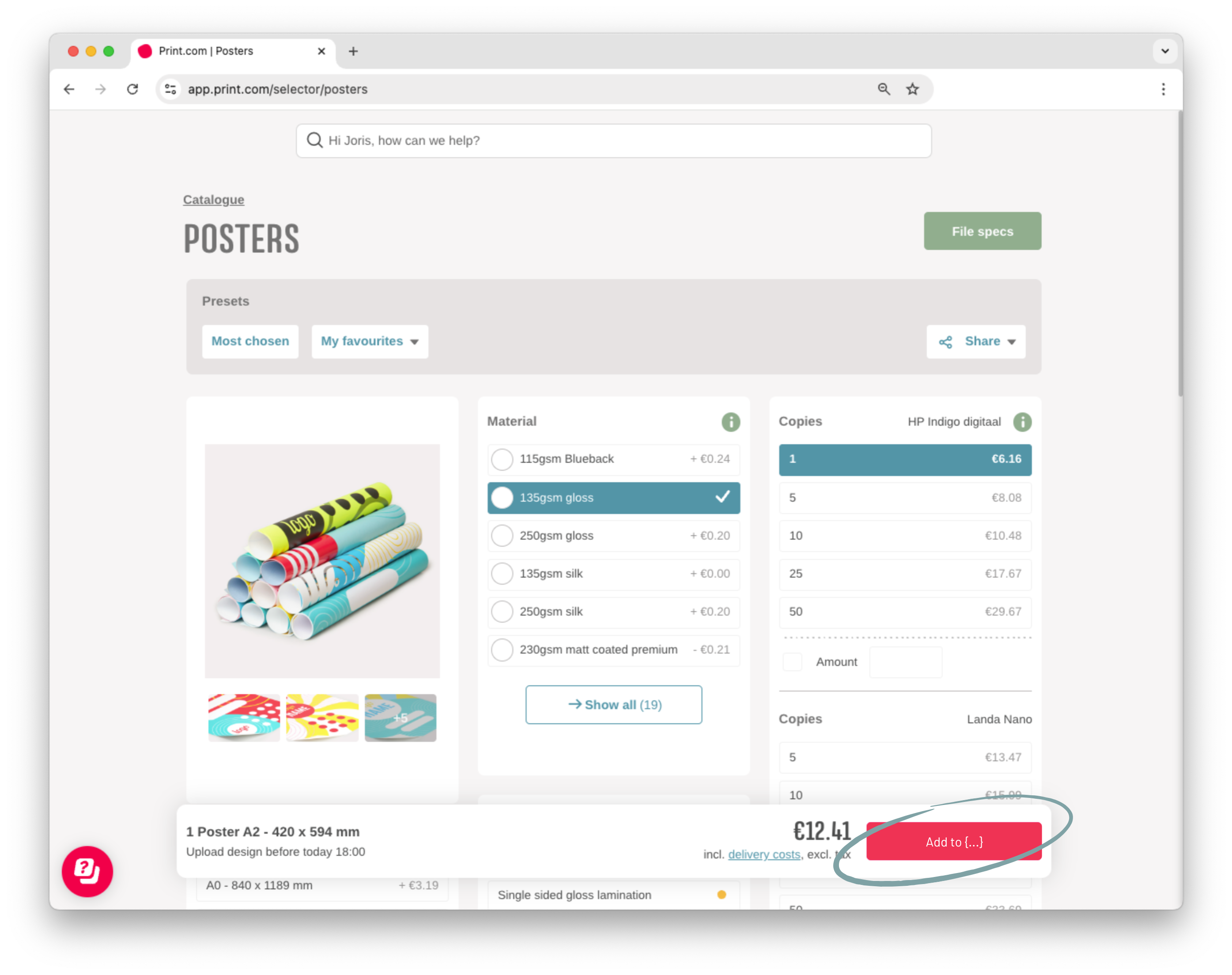
When navigating to a product and its selector, on the bottom the big button will say "Add to[YourApp]", which will send a POST call to the callback URL that was sent with the cb parameter. Make sure the URL is encoded. A message will display if the call was successful or if it failed. Within the body, the same productInfo, object as displayed above, is sent.
Product info object
// example of productInfo object
{
  sku: "bounded-magazines",
  title: "Bounded magazines",
  deliveryPrice: 6.5,
  options: {
    copies: 50,
    size: "a4",
    clean_cut: "yes",
    binding: "bounded",
    material: "135gr_silk_mc",
    pages: 44,
    printingmethod: "digital",
    // etc
  },
  salesPrice: 240,
  productUrl: "https://app.print.com/selector/bounded-magazines?copies=50&size=a4&clean_cut=yes.....",
}
4D
Another method of integrating the Print.com app is through a 4D app. Refer to the 4D documentation on Web Area for details about accessing 4D methods. With the appropriate property enabled, you can call 4D methods from the Web Area.
To integrate ERP Support with the Web Area, ensure that the whitelisting and test account setup are complete. Once ready, navigate to https://app.print.com/?4Dapp=[YourApp]. Upon accessing the app, you will encounter a login screen—enter your credentials to log in. The app interface will be a simplified version of the standard Print.com web app. While users can browse the product catalog and configure products, other features, such as the cart, account settings, and order overview, will be disabled.
In the product selector, a button at the bottom labeled 'Add to[YourApp]' will appear. Clicking this button triggers a call to the 4D method in the following format: window.$4d.4DMethodName. This method sends an object containing the selected product information from the product selector to the 4D app. Note that the method assumes the call is sent successfully, as there is currently no way to verify its success. The body of the request includes the same productInfo object described earlier.
Print.com ERP Support product catalogue
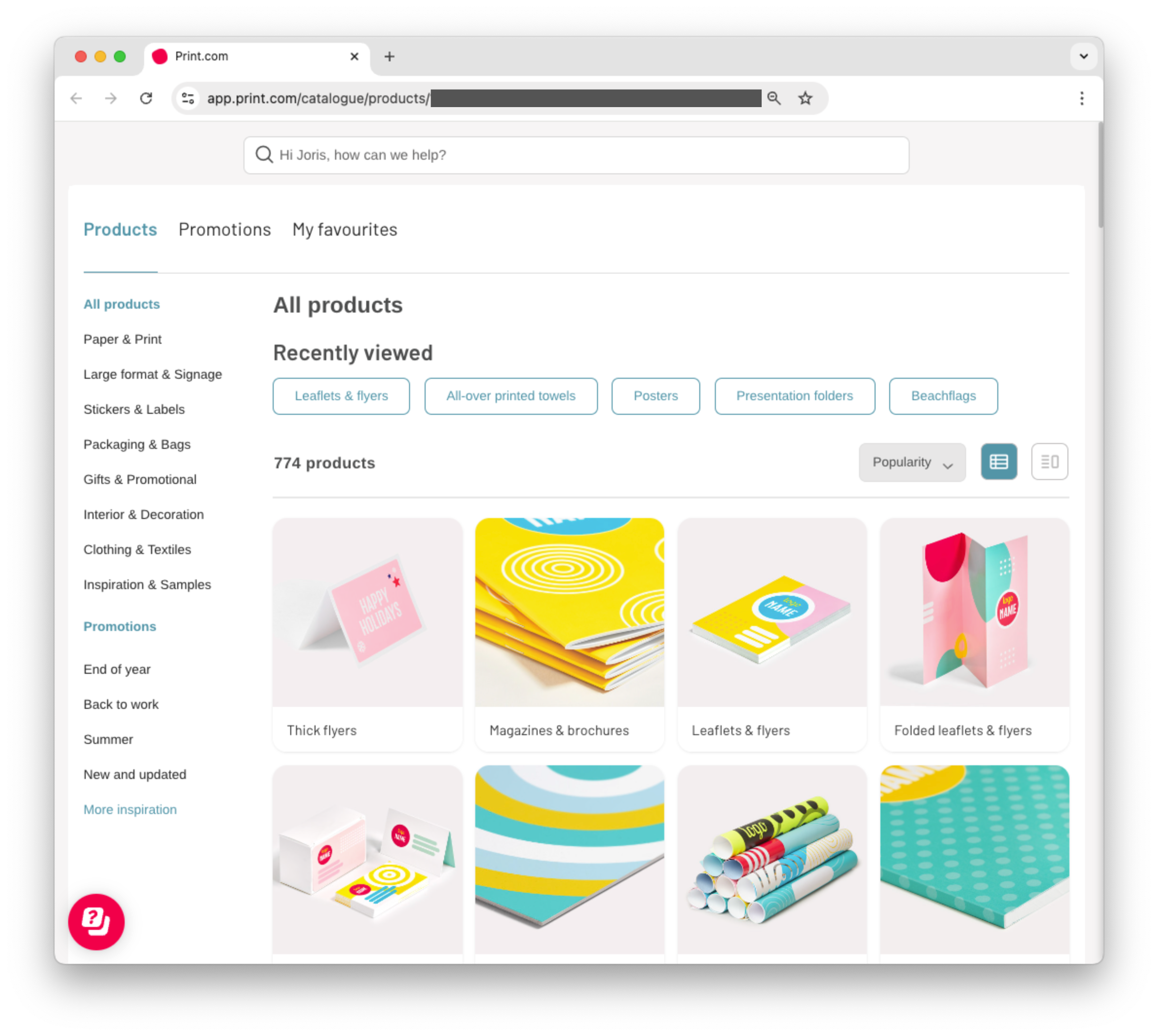
Here is an example of how the product catalogue appears when accessed via ERP Support, whether through a browser or the 4D app. Unlike the Print.com web app, the top bar and left-side menu structure are absent. However, a personalized search bar is available to quickly locate products. Additionally, the "My Favourites" feature allows users to easily browse through their saved product configurations.
Print.com ERP Support add product to application
Users navigate through the familiar Print.com web app to find the product they want to configure. Once the product is set up and ready to be added to, for example, a quote they are creating in your application, they simply click 'Add to Application'. This action sends the relevant product information, including pricing, specifications, and other details, back to your application for further processing.